
Tailor your resume to a job in one click
Build a resume from your profile, score it against a job you have saved, then improve it in one click and choose which changes to keep.
How it works
Start a new resume from your profile
In My Resumes, click New Resume and choose Import from Profile. Your profile details are filled in, with a live preview beside them. You can also upload a resume file or start from scratch.
Open the Evaluator
Choose Job-Specific to check your resume against a particular job, or Role-Specific to sharpen it for a type of role, such as software engineer.
Import the job and analyse
Click Import from Applications and pick the job, or type the details in yourself, then click Analyse Resume. You get an overall score out of 100, plus scores for ATS, tone and style, content, structure and skills.
Read the feedback
Each section lists what is working and what to improve. Expand a tip to see why, then make the change yourself in the editor.
Improve in one click
Click Improve Resume to rewrite your resume for the job using only the experience in your resume and profile. If the rewrite would not score higher, your resume is left as it is.
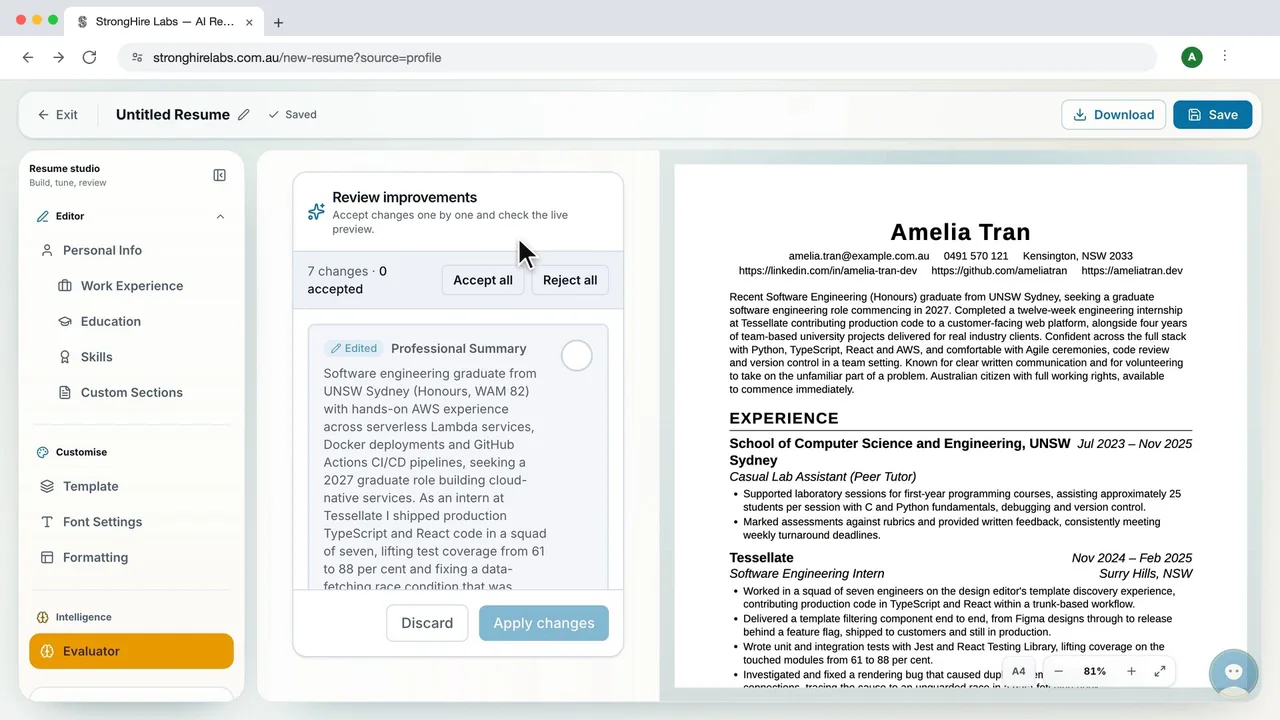
Review and apply the changes
Accept the suggestions you want and watch the preview update as you go, then apply them. Nothing changes until you do.
Frequently asked questions
- When should I use Role-Specific instead of Job-Specific?
- Use Role-Specific before you have a particular job in mind. You name the role you are targeting and can add the size of organisation and your career goals. Once you have a job ad, use Job-Specific to tailor your resume to it.
- Does analysing or improving my resume use credits?
- Yes. Analysing uses 3 credits and Improve Resume uses 5 credits, from the 10 daily and 40 monthly credits shared across AI features. Importing from your profile or from a saved application is free.
- Will Improve Resume make up experience?
- No. It only uses what your resume and profile show. If an area still scores low, add real projects, metrics or tools you have used to your profile, then analyse again.
- Do I have to accept every suggested change?
- No. Accept or skip each change on its own, or use Accept all and Reject all. Discard closes the review and leaves your resume as it was.
Try it on your own resume
Create a free account, open My Resumes and click New Resume. No payment card is needed during the validation launch.